MASV
/
Blog

The Official MASV blog

Thought leadership, tutorials, practical guides, and other content to help you move large files faster and smarter.

Latest Insights

Security & Compliance

M&E Workflow 3-2-1 Backup Rule

The 3-2-1 backup rule is the foundation of post-production backup. MASV makes it easy to meet that standard with direct-to-storage delivery.

Video and post-production runs on reliability: When editorial pulls files, colorists stage passes, and VFX waits on plates, every team assumes the media is instantly recoverable. But that only holds true if your storage strategy is bulletproof – and the proven safeguard is the 3-2-1 backup rule to defend against accidental deletion or potentially catastrophic data loss.

In this guide we’ll cover what the 3-2-1 video backup workflow really means for data protection in practice, how it applies to M&E, and how to use MASV – alongside the ShotPut Studio automated media workflow platform – to conquer bottlenecks, automate data delivery, and protect creative assets from capture to delivery.

What Is the 3-2-1 Backup Rule?

The 3-2-1 backup strategy is a time-tested secure structured backup strategy for safeguarding data integrity and business continuity: It requires teams to keep three copies of your data, stored on two different media types, with one off site copy. More than simply cloud backup for filmmakers, this layered data recovery strategy addresses both hardware failure and geographic risk.

3-2-1 backup rule: 3 data copies, 2 media types (HDD & cloud), 1 offsite backup.
In short: redundancy keeps you moving when hardware or human factors get in the way.
  • 3 copies of your data: A working copy and two backups.
  • 2 different media types: Spread your copies across different technologies such as SSD, RAID, LTO, or cloud storage to avoid shared failure modes.
  • 1 offsite copy: One geographically separate version that protects against disasters like fire, theft, flooding, or power failures.

However, many pipelines still fail at the hardest step of the 3-2-1 backup rule – creating a reliable, high-performance offsite copy.

💡 Read More: How to back up an external drive to the cloud

Applying the 3-2-1 strategy in Post-Production Workflows

For post supervisors, DITs, and editors, the 3-2-1 backup strategy for video editors and other post teams translates into a repeatable pattern designed for the realities of fast, distributed production.

It’s an M&E backup solution that delivers a consistent method of disaster recovery to guard against the potential of hard drive failure, corruption, human error, data security, or other incidents that can destroy weeks or even months of work in minutes.

Most modern data protection strategies consist of a mix of online, nearline, and offline storage.

The 3 copies

  • Copy 1 – Online working volume: High-performance local storage with fast recovery speed such as NVMe/SSD or storage area network (SAN) for production data. Optimized for throughput and latency. Supports live creative work in editorial, color, and VFX.
  • Copy 2 – Nearline local backup: A redundant array of independent disks (RAID) network attached storage (NAS), SAN, or LTO. This provides local durability and ensures continuity if your primary device fails.
  • Copy 3 – Offsite restore anchor: A geographically separate copy, often in a cloud storage provider, that serves as the last line of defense for backup recovery if your entire facility goes down.

The 2 media types

Mixing storage media types protects against correlated failures. Industry standards (like Netflix’s production data management guidelines) require original camera files (OCF) and original data like original production audio files (OPA) to be stored on at least two distinct media.

Media types suggested by Netflix include a camera or sound card; NVMe transfer/shuttle drives; RAID 5, 6, 10 or above; LTO 6,7,8, or 9 written in LTFS v.2.0.0 or later; cloud-based file storage.

A balanced storage approach – SSD for speed, RAID for redundancy, and cloud for distance – keeps production schedules safe from single-point surprises.

The 1 offsite version

The “1” in 3-2-1 data backup – offsite backup for disaster recovery – is where most workflows stumble. Traditional offsite methods create bottlenecks that can threaten delivery timelines. That’s because:

  • Physical drives are slow and risky: Shipping media wastes time, doesn’t scale, and exposes sensitive footage to loss or damage.
  • Massive file sizes choke standard uploads: Terabytes of full-res deliverables can take days when backing up RAW footage.
  • Longer gaps equal higher risk: Each day without an offsite backup increases your exposure to data loss.

It’s best to treat offsite delivery as a same-day outcome: Engineer your data pipeline to complete quickly, verify checksums using tools such as xxHash64be or ASC-MHL, and produce an auditable record of every transfer.

Mastering the 3-2-1 Workflow with MASV

MASV is built for the exact challenge posed by the off site step in a 3-2-1 storage workflow. It’s the accelerated, automated, and intelligently managed file transfer tool that makes moving massive media files to offsite locations like a cloud backup service efficient, reliable, and worry-free.

Lightning-fast transfer acceleration

MASV can automate video backup to cloud and moves multi-terabyte packages at the pace of production. Transfers of offsite copies complete on the same day – even while editorial and color continue working – while high throughput, Multiconnect channel bonding, 10Gbps-plus transfer speeds, and automatic retries make large-scale data transfers practical and predictable without transfer babysitting.

MASV integrations dashboard. View connected services like Synology, Amazon S3, and Dropbox. Check transfer status and direction.

Direct-to-cloud integrations

MASV’s Send to Cloud feature lets you skip re-uploads by integrating directly with your preferred cloud storage with no coding required, including:

  • Amazon S3
  • Microsoft Azure
  • Frame.io
  • Iconik
  • Wasabi
  • Backblaze B2

Connect once with a couple of clicks, send once, and MASV delivers your verified copy directly to the right storage – or multiple storage destinations – securely and automatically. This is the way.

File transfer automation and guaranteed delivery

MASV Watch Folders remove manual steps from the file transfer process. Simply point the MASV Desktop App at your verified offload directory and the instant any new files appear, MASV automatically uploads them to your destination.

If a connection drops, the transfer resumes until completion thanks to MASV’s relentless retries and store-and-forward transfer method that ensures successful transfers every time – even if there’s a temporary outage on the recipient side.

The result: guaranteed delivery, zero manual transfer.

Building a complete 3-2-1 workflow with MASV

Here’s how post teams can achieve full 3-2-1 backup compliance using MASV:

  • Copy 1 – Online (working copy): Ingest camera media, verify checksums, and store it on your NVMe or SAN working volume.
  • Copy 2 – Nearline (local backup): Mirror verified footage to a RAID array or LTO tape for local redundancy.
  • Copy 3 – Offsite (via MASV): Using the Desktop App, MASV Watch Folders monitor the verified offload path and automatically send media to your cloud bucket on storage platforms such as S3, Wasabi, or B2.

Result: Your third copy is safely and reliably stored offsite on the same production day, without slowing down the team. Post teams can pull from working copy storage with the peace of mind that they’ve got backup copies ready and available, along with a third copy stored offsite if things really go sideways.

ShotPut Studio + MASV: Cascading 3-2-1 and Beyond

But it gets even better: The new MASV integration inside ShotPut Studio turns your offload process into a 3-2-1 storage workflow within a single app and a single click.

Shotput Studio's 3-2-1 backup workflow. Media asset management (MAM) software showing fast storage, transcoding, and reports.
  1. Copy and report to your fastest drive (copy 1): Offload to NVMe/SSD and generate a checksum report. This becomes the working copy and verification source.
  2. Cascade to a slower drive (copy 2): In the same ShotPut job, create a second copy to your RAID NAS or LTO for local durability.
  3. Start uploading to MASV (copy 3+): While the nearline copy writes, MASV begins uploading directly from the fast drive to your Portal.
  4. MASV-to-many: From a single upload, you can route files to multiple destinations such as cloud storage, another facility, or on-prem object storage at the same time without re-uploading.

This MASV-Shotput 3-2-1 workflow allows you to copy media from a card to fast storage, add copies of those files to slower storage, start a transcode and move the proxies to slower storage, and upload both the proxies and original camera media to the MASV cloud – all with just one click.

If you haven’t already, check out the video up top for a demonstration.

This cascading copy method clears camera cards faster, stacks transfers in parallel, and keeps your offsite copy in progress while you’re still working locally.

Simplifying the 3-2-1 Backup Rule With MASV

The 3-2-1 backup rule remains the foundation of professional post-production backup. Three copies, two media types, one offsite – that’s the minimum standard.

MASV makes it easy to meet the 3-2-1 backup rule standard with accelerated transfers, direct-to-cloud delivery, automation, and now full integration with ShotPut Studio. Together, MASV and Shotput Studio offer a workflow that’s faster, safer, and verifiable from the moment footage is ingested.

Build it once, automate it with MASV, and protect your creative assets from capture to delivery – every single day. With MASV, you’ll never wonder how to backup large video files to the cloud (or anywhere else) again. Sign up for MASV to get started.

Conner Stirling
October 28, 2025
6 min read
File Transfer

Download Large Files Without Zipping

Download large files quickly, reliably, and without zipping with MASV's new zipless browser downloads. Read our product update and learn how to do it!

You’ve just received a link to download large files, and you’re stuck staring at a progress bar while files get zipped. And zipped again. More zips than a Norwegian parka.

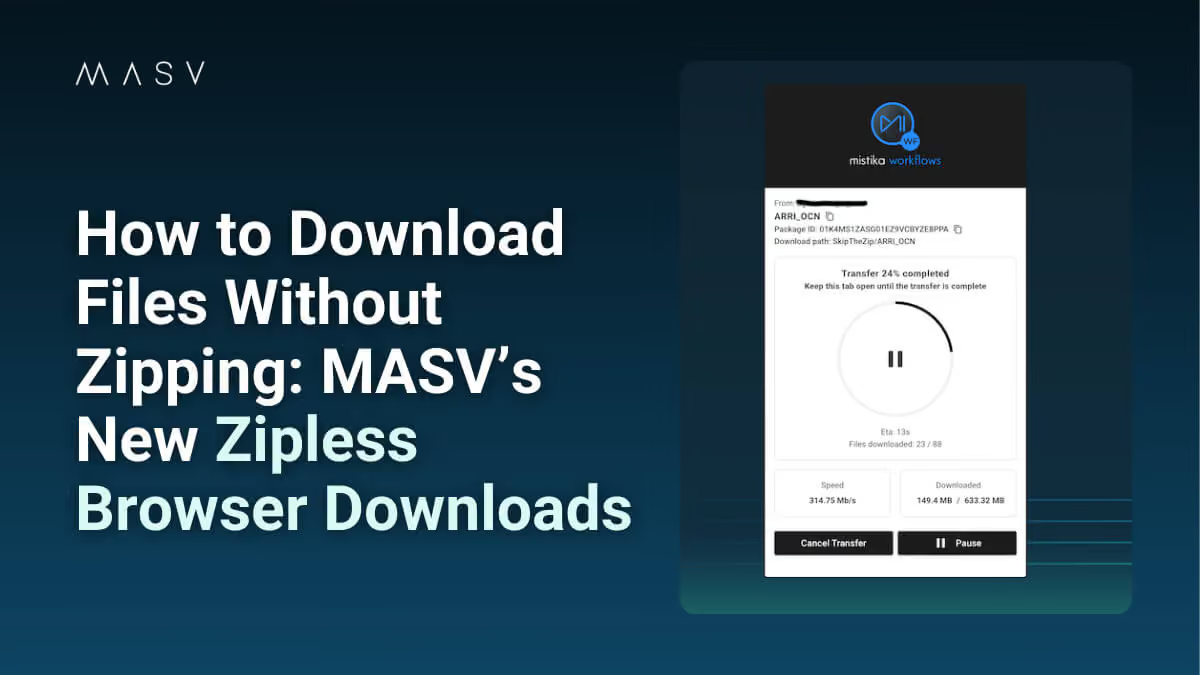
It’s a ridiculous detour your workflow has to take – until now. MASV has helped our users ditch the zip on file uploads (and downloads in the Desktop App) for years, and now you can ditch the zip on file downloads using MASV Web App with zipless browser downloads in Google Chrome and Firefox. It’s a deceptively simple upgrade that eliminates bottlenecks and delivers your files faster, lighter, and exactly the way they were sent.

Want to break free from the tyranny of zipping files? MASV can help – and we promise, you’ll never look at browser downloads the same way again.

Why Platforms Like Google Drive Force You to Zip Downloads

Let’s start with the obvious question: Why do many cloud storage tools force you to download a zipped large file package in the first place?

The simple answer is because browsers have serious limitations:

  • Chrome is great, but it’s not built to handle downloading massive files.
  • Most browsers can’t preserve file structure.
  • That’s why platforms like Google Drive compress everything into one (or even several) ZIPs before downloading.

Once the zipped file is downloaded, you’ll need double the disk space to extract it. That’s not just inefficient: it is straight-up workflow sabotage.

On top of inefficiency, zipping files for large file transfers has several other disadvantages including the potential for file corruption and a lack of cross-platform support because there are no unified standards around ZIP files.

How to Download Folders Directly Without Zipping

Here’s how to use MASV’s new zipless browser downloads feature to change the game.

1. Click a MASV download link.

2. In your Chrome or Firefox browser window, select the Skip the Zip link in the banner at the top of the window. Note: This banner will only appear if the package meets the criteria for zipless downloading.

3. On the download card, select the Download in Browser button.

Placeholder image

4. Select one or more files to download (Select All is enabled by default).

Placeholder image

5. Hit Download Location.

6. In the pop-up, click Select Download Location.

Placeholder image

7. Create a dedicated folder for the download (recommended) or select an existing non-system folder that MASV can write to. You cannot download to the root of a system folder.

Placeholder image

8. In the Let Site Edit Files window, select Edit Files. This crucial step allows MASV to write files to the folder you created or selected.

Placeholder image

9. On the MASV download card, select Start Download.

Placeholder image

10. When the download is complete, the files will appear in a folder labeled with the package name.

Zipless With Benefits: Lighter, Better, Faster, Smarter

Using MASV’s zipless download feature is like having a direct pipeline for your files, where they arrive exactly as they were sent, without any detours.

  • Download individual files, full folders, or full file trees directly from your browser.
  • MASV maintains the original file structure – no manual reassembly required – without needing to generate, download, and extract a ZIP file.

Whether it’s a batch of dailies, a folder of ProRes clips, or your latest VFX delivery, MASV delivers it directly without wasting time.

Other benefits of not zipping files

No more waiting for ZIP generation: If you’ve ever downloaded a large folder from the web, you know the pain of watching “preparing your download…” tick away. With MASV zipless browser downloads, that step doesn’t exist.

No extraction needed: Say goodbye to manual unzipping – your files land ready to use, exactly where and how you expect them.

No double disk usage: A 100 GB ZIP file needs 200 GB of space: 100 to store the ZIP and 100 to extract it. With MASV’s zipless downloads, you only need space for the original files.

Faster access: With fewer steps between you and your media, you can jump into your edit, review, or delivery sooner.

No installs required (seriously): Zipless downloads work directly in your browser – you don’t even need the MASV Desktop App to enjoy these benefits. No plugins. No downloads. No IT permissions. Just a clean link, fast download, and reliable delivery.

This makes it perfect for clients and partners who don’t want to install anything, large enterprises with strict device policies, or literally anyone else sending or receiving large files.

Download Large Files Without Zipping With MASV’s Zipless Browser Downloads

With MASV zipless downloads, you can download large files without the extra hassle and potential complications of zipping. All your downloaded files land where they’re supposed to, with their folder structure intact, and without any plugins or software installations necessary.

Sound like the kind of upgrade your workflow has been waiting for? Then stop zipping and start moving. Sign up for MASV today to get started.

Conner Stirling
September 15, 2025
4 min read
File Transfer

P2P vs Store-and-Forward File Transfer

Why store and forward file transfer is far more reliable, secure, and easier to set up and use than P2P file sharing, without compromising speed. Read our guide!

Peek under the hood of enough file transfer services and you’ll likely notice there are two main ways of transferring files over the internet: P2P file sharing and store-and-forward (also known as relay-based transfer) over the cloud.

But what exactly do we mean by those terms? And which methodology – point-to-point or store-and-forward – is most effective for busy professionals who need to reliably transfer large files on a deadline without curling up in a ball and weeping?

In this post, we dive into the pros and cons of each method – and why store and forward file transfer is far more reliable, secure, and easier to set up and use without downgrading on speed. We’ll also detail how MASV’s newest file movement innovation, MASV Express, stacks even greater performance advantages onto this foundation of reliability. Let’s get to it.

Point-to-Point vs. Store-and-Forward: What’s the Difference?

Several notable differences exist between P2P (point-to-point) technology (not to be confused with peer to peer file sharing, which uses the combined bandwidth of all nodes in a network) and store-and-forward file transfer platforms.

What is point-to-point file transfer?

A P2P file sharing program is traditionally an on-premises system that moves files from point A to point B along your available bandwidth. Both sender and recipient need to install desktop software, creating a direct path between the two that allows them to transfer files via a server-to-server method.

In a P2P file sharing program, files are shared directly between endpoints with no buffer zone or middle hop in between – which may seem intuitively faster, but in reality, P2P doesn’t provide faster transfer speeds and will fail in case of an outage on the receiving end.

What is store-and-forward file transfer?

Store-and-forward shared files, on the other hand, are first sent to the cloud before going to the recipient.

Store-and-forward file transfer can match or even exceed the speeds of a P2P network, but with an added twist: Their two-hop nature means they’re often far more reliable. That’s because in case of an outage on the recipient side, files are securely stored in the cloud and delivered as soon as systems are back online.

A look at how MASV's store-and-forward file transfer system works.

P2P File Sharing vs. Store-and-Forward: Which is Best?

Both ways of sharing files have advantages, but one in particular makes store-and-forward file transfer a far more reliable method. Let’s explore what we mean by that.

P2P

First, the good: P2P solutions such as Aspera and Signiant Media Shuttle can achieve very fast file transfer speeds.

On the downside, however, they typically require complex hardware (such as a central server and other computing resources) and software installations, which can require hours of time from both the sender and recipient. Files shared within a local network typically don’t need a central server.

  • To share files externally, however, P2P systems also usually require firewall and other configurations and the opening of ports, which adds more setup time and can be a security risk.
  • Along with complicated setup, their complex user interfaces often necessitate training and tutorials (and sometimes hours of troubleshooting) for casual users to send files, which is just annoying.
  • Because they often utilize on-premises hardware, P2P file sharing offers more centralized control compared to other services.

But one of the most impactful ways P2P file sharing software can fail users is when a recipient’s storage or compute instance goes offline, or storage runs out of space. When that happens, shared files to that recipient fail and must be restarted – resulting in lost time, low productivity, and extreme frustration on the part of your collaborators sending files.

Store-and-forward

Store-and-forward file transfer can match or even exceed the speeds of P2P systems with no decrease in file transfer turnaround time.

  • Senders can utilize their full bandwidth during uploads without any throttling if the receiver has slower download speeds.

Because these systems are browser-based, they typically don’t require IT to set up. And their simplified interface is easy for users to spin up and start sharing files out of the box (without the time suck of sitting through training and tutorials).

But maybe their greatest benefit is their reliability: Store-and-forward file transfer creates a buffer zone between a sender and recipient, so if there is an outage or storage runs out of space on the receiving end, the issue doesn’t propagate down to your users. In our case, MASV holds the files in our secure container until they’re ready to be downloaded.

  • This method relies on accelerated cloud infrastructure and provides a safe harbor between point A and point B, without sacrificing performance.
  • Senders can securely upload files without failure on their end, even if there is a temporary issue with point B, alleviating frustration – and improving cost effectiveness when working with freelancers or others who spend unnecessary time retrying file uploads.

Users can continue to upload files without having to retry or babysit file transfers (and without you paying them to do so). In case of an outage on the recipient’s end, all files are retained in the cloud and are sent when the target storage becomes available.

Store-and-forward file transfer improves cost effectiveness when working with freelance videographers or photographers.

OK, But Why Can’t Files Just Go Straight To Their Destination?

We often get questions about store-and-forward file transfer around turnaround time, cost, and security. And we’ve got answers to those questions.

Is P2P file transfer faster than store-and-forward?

P2P software uses a direct connection but both methods can achieve similarly fast speeds – with some store-and-forward based systems, like MASV, able to hit a sizzling 10Gbps. Advanced features allow recipients to start accessing files as they upload, significantly reducing wait times and delays in time-sensitive projects (more on this below).

That’s a big deal for content owners and streaming platforms who often receive finished files just a few hours before go-live time, and where every minute counts.

Additionally, because some store-and-forward file sharing platforms (like MASV!) offer one-to-many automated file transfers and global scale out of the box, organizations don’t waste time transferring the same file multiple times to hot and cold storage for editing and archival purposes. One upload can send files to multiple destinations automatically.

Isn’t it cheaper and faster for users to send files directly to my storage bucket?

It’s true that users of a store-and-forward system pay for data egress from the cloud. But that’s the case no matter which cloud storage you use, and store-and-forward platforms like MASV typically offer cheaper egress than most other cloud providers.

  • There’s also the issue of geography. An organization with unlimited resources could deploy multiple storage buckets in multiple regions, to ensure low latency transfers no matter where files are sent from.
  • But deploying multiple cloud buckets requires a highly technical team of cloud engineers provisioning a ton of infrastructure in different regions, configuring your buckets, and keeping each of them secure, patched, and up-to-date – which can get expensive in a hurry (and takes a lot of time).

Organizations who try to save money by taking this route almost always end up spending more, with degraded performance to boot.

Isn’t it more secure for users to send files directly?

P2P file sharing systems may seem more secure, but the reality is that they’re often subject to potentially devastating vulnerabilities that have led to significant data breaches – especially when systems are self-hosted and often not updated and patched in a timely manner.

  • Store-and-forward file sharing software like MASV is cloud native, which means all updates and patches are performed for all users by the provider in minutes.
  • MASV uses strong encryption on all files at rest and in flight, along with internal ISO 27001 security controls and SOC 2 compliance for airtight data protection.

MASV is also a Gold Shield member of the MPA’s Trusted Partner Network (TPN) vendor roster, which uses third-party assessors to evaluate a vendor’s security measures in line with MPA best practices, to alleviate any security concerns. MASV also does not permit copyright infringement, illegal file sharing, or the unauthorized use of copyrighted material on our network.

How long do my files stay in the cloud?

Unlike P2P software, organizations who share files have full control over how long files are retained in a store-and-forward file transfer system’s cloud. Depending on your requirements, files can be retained for weeks, months, years, or deleted immediately.

MASV Express: Store-and-Forward on Steroids

MASV’s latest product drop, MASV Express, takes the store-and-forward model and injects it with fire for even greater performance, while still retaining the benefits of a store-and-forward system.

Built on the same store-and-forward platform customers around the world have come to rely on for fast, scalable, and secure file delivery, MASV Express moves files from origin to the destination without first needing the complete file in MASV’s secure container, accelerating file transfer turnaround times by as much as 5X.

Store-and-forward file transfer improves cost effectiveness when working with freelance videographers or photographers.

With MASV Express, files start downloading as soon as the first bytes of the file begin their upload – improving performance even more while retaining the reliability and other advantages of store-and-forward by still sending files to the MASV cloud.

This is ideal for live sports and other live broadcast use cases, where speed-to-air is paramount. Teams can start cutting video into highlight clips as soon as a clip begins uploading to their storage bucket.

💡 Read More: The Importance of Video Metadata for Live Sports Workflows With Iconik

MASV: Store-and-Forward File Transfer More Reliable Than P2P File Sharing

MASV is a store-and-forward file sharing service that’s much easier to set up and use than P2P sharing, and leverages Amazon Web Services (AWS) global cloud infrastructure to provide the most secure, reliable, and accelerated file transfer possible.

It’s like a superhighway where files get on at the nearest on-ramp – an AWS data center – and travel at accelerated speeds to the offramp closest to the recipient, with no file size limits.

  • But most importantly, unlike a P2P program, MASV protects against recipient outages and other potential file transfer failures by retaining files in our cloud and completing the transfer as soon as the recipient’s storage is back online.
  • This alleviates frustration for users trying to send you files, while lowering costs for organizations who don’t need to pay collaborators to retry file transfers over and over.
  • It does this without downgrading performance by utilizing a sender’s full bandwidth, without needless throttling if a recipient has a slow connection.

MASV’s new Express feature, which allows recipients to begin downloading files while they’re still being uploaded, adds even greater performance to file sharing workflows while retaining the benefits of store-and-forward.

Sign up for MASV and give it a try — your partners and collaborators will almost certainly thank you for it, and you won’t need to pay them to babysit and retry failed transfers. It’s a win-win.

Jim Donnelly
August 11, 2025
8 min read
Take the Next Step
Secure File Transfer for Real Workflows
Move critical files and data without the delays and friction of other tools.

Explore the MASV Blog

All Posts
Sort by...
Thank you! Your submission has been received!
Oops! Something went wrong while submitting the form.

How To

Send Audio Files

Learn how to send audio files fast with these 8 tools — whether you are a professional or just someone in need of a quick solution. Read our guide now!
Alexandra Marriott
January 10, 2023
8 min read
Send Audio Files
Learn how to send audio files fast with these 8 tools — whether you are a professional or just someone in need of a quick solution. Read our guide now!
How To
January 10, 2023
How To

Receive Large Files

Don't just wait around on a file. Learn how to receive large files using file collection tools like MASV Portals, Dropbox File Request, Filebox, & more.
Ankit Verma
March 23, 2021
8 min read
Receive Large Files
Don't just wait around on a file. Learn how to receive large files using file collection tools like MASV Portals, Dropbox File Request, Filebox, & more.
How To
March 23, 2021
Tutorials

Organize Media Folders for Editing

To help optimize your video editing workflow, we’ve got some media organization tips to help you create the most efficient folder structure. Read more!
Alexandra Marriott
November 28, 2023
6 min read
Organize Media Folders for Editing
To help optimize your video editing workflow, we’ve got some media organization tips to help you create the most efficient folder structure. Read more!
Tutorials
November 28, 2023
Tutorials

Mix Audio Premiere Pro

Looking to enhance your video? The secret is balanced audio. Learn how to mix audio in Premiere Pro and balance VO, BG music, and SFX levels.
Alexandra Marriott
June 12, 2023
8 min read
Mix Audio Premiere Pro
Looking to enhance your video? The secret is balanced audio. Learn how to mix audio in Premiere Pro and balance VO, BG music, and SFX levels.
Tutorials
June 12, 2023
Tutorials

Export Video for Broadcast Premiere Pro

Export video for broadcast in Premiere Pro with the correct frame rates and audio using this step-by-step tutorial guide by editor Alex Marriott.
Alexandra Marriott
July 9, 2024
10 min read
Export Video for Broadcast Premiere Pro
Export video for broadcast in Premiere Pro with the correct frame rates and audio using this step-by-step tutorial guide by editor Alex Marriott.
Tutorials
July 9, 2024
Tutorials

Export Videos DaVinci Resolve

Whether you're new to DaVinci Resolve or need a refresher, learn how to export videos from DaVinci Resolve; export settings and codecs explained!
Alexandra Marriott
October 21, 2022
8 min read
Export Videos DaVinci Resolve
Whether you're new to DaVinci Resolve or need a refresher, learn how to export videos from DaVinci Resolve; export settings and codecs explained!
Tutorials
October 21, 2022

Determine Best File Transfer Tool

Determine the best file transfer tool for your business using these 5 Principles: simplicity, speed, reliability, security, & total cost of ownership.
Majed Alhajry
October 20, 2022
11 min read
Determine Best File Transfer Tool
Determine the best file transfer tool for your business using these 5 Principles: simplicity, speed, reliability, security, & total cost of ownership.
October 20, 2022
Tutorials

Create Video Proxies Premiere Pro

Video proxies let you edit large videos with minimal lag and CPU strain. Creating a proxy only requires a few steps in Premiere Pro. Here's how.
Alexandra Marriott
April 19, 2022
6 min read
Create Video Proxies Premiere Pro
Video proxies let you edit large videos with minimal lag and CPU strain. Creating a proxy only requires a few steps in Premiere Pro. Here's how.
Tutorials
April 19, 2022
Tutorials

Create Custom LUT Premiere Pro DaVinci Resolve

If you have a specific look you want to apply as a color grade, here’s how to create your own LUT in Adobe Premiere Pro and DaVinci Resolve.
Alexandra Marriott
July 27, 2023
7 min read
Create Custom LUT Premiere Pro DaVinci Resolve
If you have a specific look you want to apply as a color grade, here’s how to create your own LUT in Adobe Premiere Pro and DaVinci Resolve.
Tutorials
July 27, 2023
File Transfer

Create File Upload Website Forms

Need to collect content for events, festivals, and online orders? Here are three easy methods to create file upload forms for any website.
Jim Donnelly
April 9, 2024
11 min read
Create File Upload Website Forms
Need to collect content for events, festivals, and online orders? Here are three easy methods to create file upload forms for any website.
File Transfer
April 9, 2024
How To

Compress Large Video Files

Learn how to compress large videos on your computer and mobile devices. Discover more about codecs, compression pros and cons and how to send without zipping.
Ankit Verma
December 1, 2020
8 min read
Compress Large Video Files
Learn how to compress large videos on your computer and mobile devices. Discover more about codecs, compression pros and cons and how to send without zipping.
How To
December 1, 2020
Tutorials

Better Voice Sound in Premiere Pro

Want to enhance your recording's audio quality and make your voice sound better? We show you how in Adobe Premiere Pro. Catch our tutorial!
Alexandra Marriott
July 5, 2022
6 min read
Better Voice Sound in Premiere Pro
Want to enhance your recording's audio quality and make your voice sound better? We show you how in Adobe Premiere Pro. Catch our tutorial!
Tutorials
July 5, 2022