
How to Upload Large Files to Google Drive Quickly (2026)


Key takeaways
- Google Drive imposes strict daily limits: Users face a 750 GB daily upload cap across all accounts. These constraints, combined with frequent browser-based upload failures, make Google Drive unreliable for time-sensitive, large-scale media deliveries.
- Upload failures often stem from local interference: Issues frequently arise from browser caches, active antivirus software, or interfering extensions. Troubleshooting steps include checking network stability, switching browsers, disabling security software, or using incognito mode.
- Cloud-to-cloud integration improves reliability: Using direct cloud integrations allows you to save files to Google Drive without browser interruptions. This bypasses common local upload issues, provides automated folder organization, and maintains faster, more reliable transfer speeds.
Let’s talk about the good, the bad, and the ugly of uploading large files to Google Drive...
Warning: Google Drive is not optimized for large file transfers due to its transfer speed and file size limitations. Please note that although MASV is the best way to upload files to Google Drive, transfers to Google Drive may take longer than transfers to Google Cloud or other cloud services.
Uploading large files to Google Drive should be straightforward, but once files of over a few gigabytes enter the chat, things start to break down: Uploads stall, browser tabs crash, and you hit Google's 750GB daily upload limit quickly and without warning.
We're big fans of Google products at MASV – it's just one reason why we've built integrations with Google Cloud Storage and Google Drive. The big data and media professionals who use MASV every day love being able to upload large files to Google Drive faster and more efficiently than they ever thought possible.
But nothing is perfect. Large file uploads to Google Drive are notorious for technical difficulties, upload failures, and user frustration. This guide covers Google Drive's upload rules and limits, the most common reasons uploads fail, every method available to upload large files (from basic to advanced), and how to bypass many of Google Drive's limitations using MASV.
What are Google Drive’s File Upload Rules?
Users can upload any file type (including .exe or .vbs files) to Google Drive. It’s also compatible with other software, meaning it’s pretty easy to convert file types such as .ppt or .doc to their Google equivalents when using Google apps to create a Google Sheet or Google Doc.
If you’re wondering what the Google Drive file size limit is, the answer is, it depends. Because there are many different types of Google accounts, specific Google Drive storage space limitations can vary. Here’s a table explaining Google’s storage limits by account type:
| Type of Google Account | Amount of Storage Allowed |
|---|---|
| Google One Basic | 100 GB |
| Google One Standard | 200 GB |
| Google One Premium | 2 TB |
| Frontline Starter | 5 GB per user (pooled) |
| Frontline Standard | 5 GB per user (pooled) |
| Workspace Business Starter | 30 GB per user (pooled) |
| Workspace Business Standard | 2 TB per user (pooled) |
| Workspace Business Plus | 5 TB per user (pooled) |
| Workspace Enterprise | 5 TB per user (expandable) |
| Workspace for Education | 100 TB (pooled) |
| Individual personal accounts, legacy free edition of G Suite | 15 GB |
It all adds up to a dizzying array of storage limit options, especially if you’re willing to pay for a business or similarly upgraded account. Google Drive scans most files for viruses and malware upon upload, but there’s a limit to that, too: Any file larger than 100 MB doesn’t get scanned.

The 750GB daily upload limit
No matter how much Google Drive space you’re entitled to, you are subject to a Google Drive file size limit. Every Google user tops out at a maximum of 750 GB worth of data uploads per day across all drives (although you can upload individual files up to 5 TB). Hit your daily upload limit and there’s not much you can do, other than create (and possibly pay for) multiple new Google accounts with fresh storage.
What this means in practice:
- Uploading 1 TB of footage will take a minimum of two calendar days
- The limit applies across all upload methods
- There is no way to increase this limit, even on enterprise plans
As we pointed out in a previous post about file size limits, anything stopped mid-upload due to Google’s daily limits simply pauses and continues the next day (at least in theory…just don’t shut down your computer or let it go to sleep overnight, or you may need to start all over again).
| File type | Max size |
|---|---|
| Documents (.doc, .docx) | 50 MB |
| Spreadsheets | 20 million cells |
| Presentations (.ppt) | 100 MB |
| Videos and all other files | 5 TB |
Reasons Why Your Google Drive Uploads Fail
Some of the most common complaints about Google Drive are file upload failures. And the larger the file size, the larger your chances that something could go wrong.

Adding to this frustration is that there’s a range of possible reasons why uploads to Google Drive might fail. Potential reasons for upload failures include:
- Network performance: Slow internet speeds can wreak havoc with Google Drive, so if you’re having consistent issues, it’s probably worth testing your network speed.
- Antivirus tools, along with other extensions or plugins: These can all cause possible problems when attempting to upload large files (or any size files, really) to Google Drive. If all else fails, turn them off and see if it helps.
- Finicky browser issues: Google Drive doesn’t like when your browser’s images are turned off — if you simply can’t get a file to upload, double-check your browser settings. Changing your browser or clearing your cookies/cache can also help.
- File types: Although Google Drive supports all file types, there are file size limitations attached to each file type. A text document, for example, can’t exceed 50 MB. A presentation file has a max upload size of 100 MB, and spreadsheets have a maximum of five million cells. As mentioned, other file types, like videos, have a maximum of 5 TB.
- Storage quota exceeded: If your Google Drive is full (or nearly full), uploads will fail silently or with a vague error. Check your storage at drive.google.com/settings before starting a large upload.
- Daily upload limit reached: If you've already uploaded 750GB in the past 24 hours, all further uploads will be blocked until the window resets. Google doesn't always provide a clear error message for this.
Diagnosing the reason(s) behind your specific upload failure is often challenging, but it’s not impossible. That said, figuring out why a large file you’ve just received won’t upload to Google Drive isn’t something most video professionals can afford to do on a deadline.
Quick diagnosis checklist:
- Is your internet connection stable? → Test at speedtest.net
- Do you have enough storage remaining? → Check drive.google.com/settings
- Have you uploaded 750GB+ today? → Wait for the 24-hour reset
- Is the file bigger tha5TB? → You'll need to split it
- Are browser extensions interfering? → Try incognito mode
- Is Google down? → Check the Workspace Status Dashboard
How to Upload Large Files to Google Drive
Which method should you use?
- Files under 25 MB received via email → Option 1 (Gmail)
- Files under ~5GB → Option 2 (browser upload)
- Files 5GB–750GB → Option 3 (Drive for desktop)
- Very large files or automated workflows → Option 5 (API)
- Need fast, reliable uploads of any size of file package → MASV integration (see below)
Option 1 – Save Files From Your Gmail
There are a few different methods through which users can upload their large files to Google Drive. Any files (within Google’s file size limits) you receive in Gmail can have a copy saved to Google Drive by doing the following:
- Open the email message in Gmail with the file you’d like to save to Google Drive
- Hover over the attachment in the message and click the “Add to Drive” button
- The file will be added to Google Drive
Keep in mind that the Gmail attachment size limit caps out at 25 MB so if you’re working with large video files, for example, this probably isn’t the best option.
Option 2 – Upload File From Your Desktop
Another simple method is to use your browser to upload files from your computer (or other data sources) to Google Drive. Here’s how to upload files to Google Drive from your desktop:
- Go to drive.google.com in your Google account
- Click the New button at the top left. When the dropdown menu appears, select either File Upload or Folder Upload (depending on what you’re uploading)
- Select the file or folder you would like to upload

Option 3 – Use Google Drive for Desktop
Google Drive for desktop (which replaced the older Backup & Sync tool) automatically synchronizes files between your computer and Google Drive. It's more reliable than browser uploads for large files because it runs in the background, resumes interrupted uploads automatically, and doesn't depend on keeping a browser tab open.
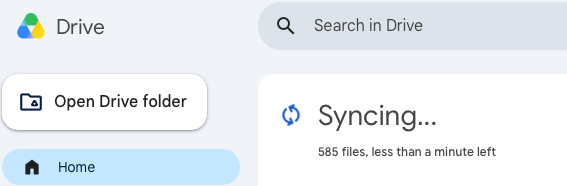
To upload large files using Drive for Desktop:
- Download and install Google Drive for Desktop from google.com/drive/download/
- Sign in with your Google account
- Open your file manager (Finder on Mac, File Explorer on Windows) – you'll see a Google Drive location in your sidebar
- Drag and drop your files into the Google Drive folder
- Drive for Desktop syncs automatically – monitor progress by clicking the Google Drive icon in your system tray or menu bar
Option 4 – Use a Third-Party Chrome Extension
Another option is to use a third-party chrome extension called Speed Uploader for Google Drive.
If you’re wondering what is Speed Uploader for Google Drive, it’s a browser app that lets users upload batch files to a commonly-used folder within Google Drive.
Speed Uploader is known to be faster and more stable than Google Drive at uploading. How much faster? It’s hard to say; there aren’t any hard numbers to validate. The app does have generally favorable reviews and over 10,000 users in the Chrome store so it’s worth considering for faster upload of large files to Google Drive.
Option 5 – Use Google’s API
Advanced users can also use Google’s API for batch uploading or file removal. And any user — from novice to advanced — can use MASV to get files into Google Drive reliably and quickly (more on this in the final section below).
Workarounds for Uploading Large Files to Google Drive
If you run up against limitations or other problems uploading large files to Google Drive, you do have options. As we’ve blogged about previously, using file compression techniques and/or splitting your large files into several pieces can be incredibly helpful (but also incredibly time-consuming and aggravating).
Pics.io has compiled a handy checklist teams can use to troubleshoot Google Drive upload issues:
- Check network connection
- Disconnect/reconnect your Google account
- Check your available storage space
- Restart Drive for desktop (more on this below)
- Try running Google Drive as an administrator
- Disable the anti-virus, ad blockers (AdGuard, for example), and Firewall, used for network security
- Make sure to turn on the images in your browser
- Remove the cached data in your browser
- Re-upload the browser and/or go incognito
- Double-check file names, size, types, etc. and rename or resize them, if needed
For file upload failures, you may want to start by checking the Google Workspace Status Dashboard just in case. Google isn’t immune to outages, after all, although they are pretty rare. Other potential workarounds to get around Google Drive upload failures include:
- “We’re processing this video. Please check back later”: It’s a common occurrence that even if a video successfully uploads, you’ll get this error message when trying to play it back. If that’s the case for you, try refreshing your browser for starters. If that doesn’t work, you can either download the video to your computer, try using a different browser, or try opening it through Google Drive for desktop.
- Force stop Google Drive: If you’ve noticed your large video file upload hasn’t progressed in a while, and you’re using the Google Drive app, there’s a good chance your upload has failed. Hit Force Stop in the app to stop the download and start over again.
Other things to try: Restart or reinstall Drive for desktop, or try using an incognito window in your web browser to upload the files.
Tips to speed up Google Drive uploads
Regardless of which upload method you use, these tips can significantly improve upload speed:
Network:
- Use a wired ethernet connection (Wi-Fi adds latency that compounds with large files)
- Pause other bandwidth-heavy activities such as streaming, video calls, or cloud backups) during large uploads
- Upload during off-peak hours if you're on a shared network
Google Drive-specific:
- Upload fewer, larger files rather than many small ones – each file has overhead. Consider zipping small files into archives first
- Use Drive for desktop instead of the browser for anything over 5 GB
Hardware:
- Close unnecessary browser tabs and applications to free up RAM
- Make sure to upload from an internal drive, preferably an SSD, not an external HDD on a slow USB connection (disk read speed can be a bottleneck)
How to Use MASV to Upload Large Files to Google Drive
Video professionals and others who need to upload large transferred files to their Google Drive accounts (or any other conceivable destination) quickly, dependably, and securely can also use MASV.
As I mentioned up top, we’ve already implemented super-smooth integrations with Google Cloud and Google Drive. That means you can reliably save all your large transferred files to Google Drive directly from MASV with just a click or two. No more downloading files from MASV and then re-uploading them to Google Drive.
Once you or your collaborators receive a file, all you have to do is the following:
- Visit your MASV download page
- Select “Save to…” and navigate to Google Drive

After the recipient saves their file package to Google Drive, a MASV folder is automatically created on their drive. The package is saved in this folder under its original package name and includes all the original files and folders.

Couple of things to keep in mind:
- Although MASV itself has no file size limits, the package size cannot exceed the available space in your Google Drive account, and all file uploads must conform to Google’s daily file upload limits (a max of 750 GB over 24 hours)
- Zipped files cannot be transferred to Google Drive
- Google Drive transfers using MASV must be performed using the browser, not the MASV Studio.
Even when using the browser-based version, however, there’s no software to set up or plugins to install with MASV. It uploads large files to Google Drive reliably and fast no matter which firewall, antivirus, extension, or other plugin software you or your partners use.
Why is MASV faster than uploading directly to Google Drive?
When you upload directly to Google Drive through a browser, your transfer speed depends entirely on your local connection and Google's servers. Uploads are single-threaded, non-resumable in most cases, and (as anyone who has ever tried it will confirm) prone to failure on large files.
Read more: How Post-Producer Cameron Angeli Cut Project Timelines By Up to 90% With MASV
MASV uses a dedicated global network of 750+ edge POPs with accelerated transfer technology that maximizes your available bandwidth to send large files. MASV can saturate connections of 10Gbps and above, and the MASV-to-Google-Drive leg happens server-to-server – meaning it's not limited by your local connection. That means large files land in Google Drive significantly faster and more reliably than direct uploads.
If you regularly receive large files from clients or collaborators, you can create a MASV Portal with Google Drive attached as the storage destination. Any file uploaded to that Portal automatically appears in your Google Drive, with no manual steps.
This is especially useful for:
- Organizations that receive data from the field, such as post-production teams receiving dailies or raw footage from set, or geospatial firms receiving point clouds from surveyors
- Creative agencies collecting assets from multiple contributors
- Any workflow where files need to land in Google Drive without manual intervention
All files are encrypted in-flight and at-rest and can be password protected. MASV users can also upload terabytes of data with no limits on file package sizes or the number of files in a package. All uploaded files are available as an extra backup in MASV for five days free of charge – and best of all, there are no upfront or mandatory recurring fees.
So the next time you run into delays or outright failures when uploading large files to Google Drive, don’t get frustrated. Just sign up for MASV.
Related articles


.avif)
.avif)